NVIDIA GPU Resource Setup and Driver Installation - Remote RTX Workstation
Login to Azure Portal
1. Quota Increase
You need to get a quota increase for the following NVIDIA GPU resources in your Region:
- NVv4 Series
- NVads A10 v5 Series
- Other NV Series(Nvidia)
Request a quota increase to 50 cores for both series through Microsoft support or via support@mail.support.microsoft.com
2. VM Size Selection
After receiving the quota increase, initially encountered an issue where the size was not available in the selected zone.
Changed the Availability options from "Availability zone" to "No infrastructure redundancy required", which allowed the selection of:
VM Specifications:
- Image: "Windows 10 Pro, version 22H2 - x64 Gen2"
- Image: win10-22h2-pro-g2
- Standard NV6ads A10 v5
- GPU: 4
- vCPUs: 6
- RAM: 55 GiB
- SSD: 216 GB+
- Price: $336.26/month(720hrs)
- +Disk https://azure.microsoft.com/en-us/pricing/details/managed-disks/
- +Bandwidth https://azure.microsoft.com/en-us/pricing/details/bandwidth/
3. Enable Network Ports
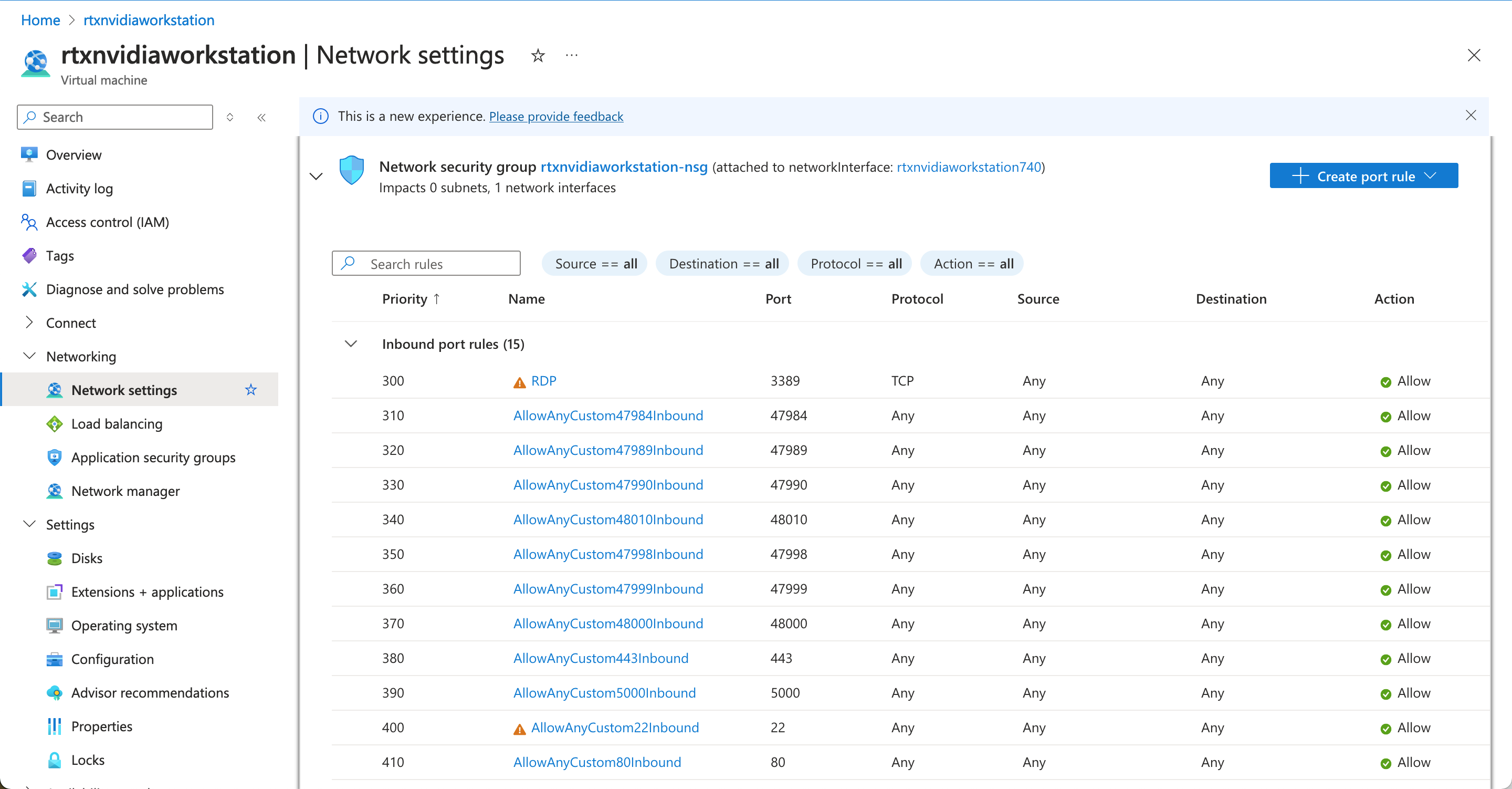
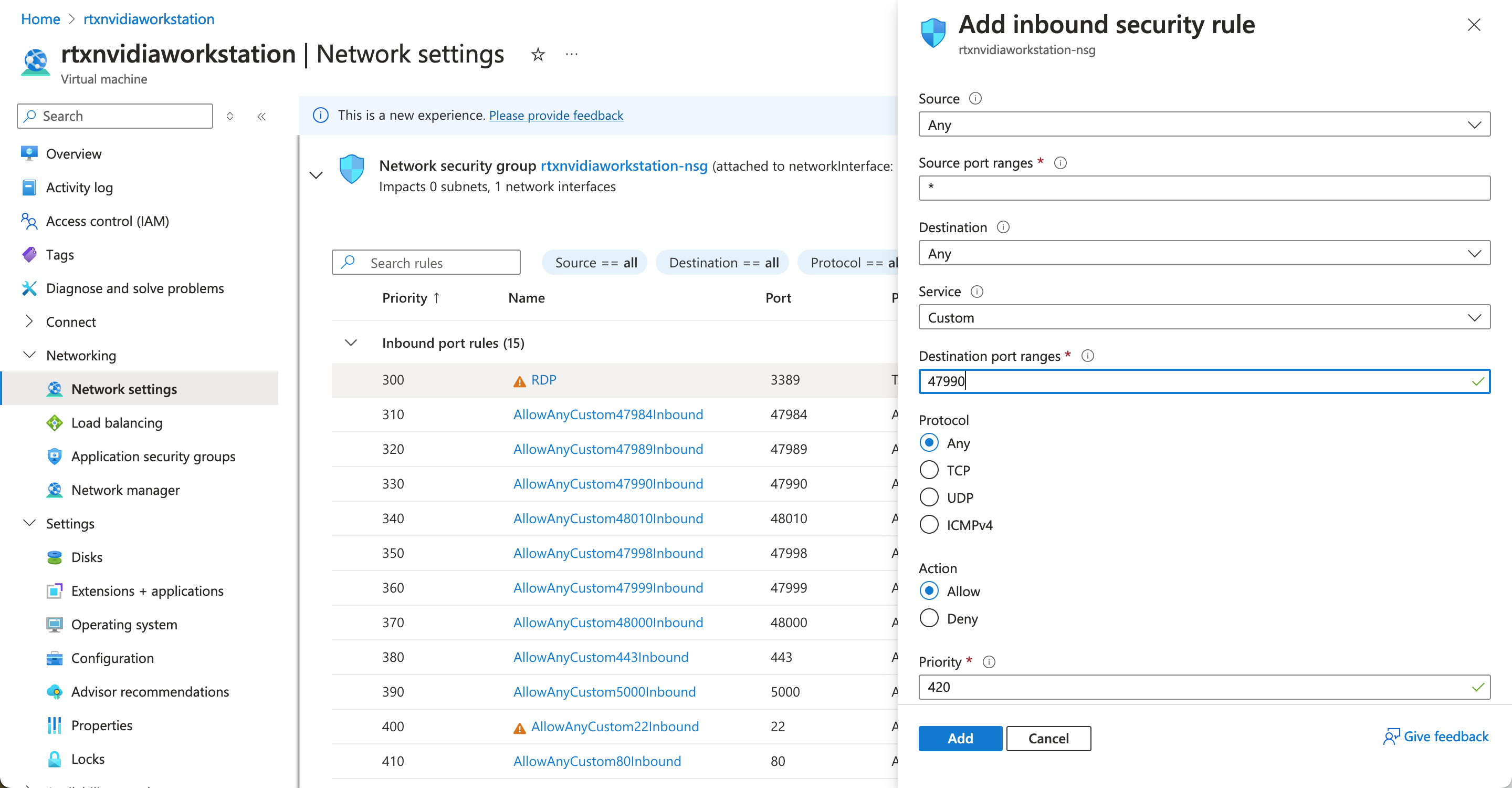
Enable these Virtual Network (inbound) ports in your virtual machine Network Settings. This is important to allow you for your low-latency streaming setup.
            $ports = @{
                '47984' = 'Tcp'
                '47989' = 'Tcp'
                '47990' = 'Tcp'
                '48010' = 'Tcp'
                '47998' = 'Udp'
                '47999' = 'Udp'
                '48000' = 'Udp'
                '443' = 'Tcp'
                '5000' = 'Tcp'
                '22' = 'Tcp'
                '80' = 'Tcp'
            }
4. Login via RDS
The Remote Desktop Solution enables streaming between the remote host and your client device (PC or Mac). However, it lacks support for low-latency applications like video games or 3D programs and does not provide apps for Android, iOS, or other platforms. We will use it only to log in and set up the required software.
5. Install Low-Latency Streaming
After creating the virtual machine, the NVIDIA GPU drivers have to be installed for low latency streaming as the default RDS doesn't support it. We are going to use Sunshine (host) with Moonlight (client) so apps like video games or 3D software can run.
- Install NVIDIA driver GRID 16.5 (538.46): https://go.microsoft.com/fwlink/?linkid=874181
- Install sunshine.exe: https://github.com/LizardByte/Sunshine/releases/download/v2024.819.132949/sunshine-windows-installer.exe (VigemBus [[Xbox360]] controller support installed automatically).
- Installed VBCABLE_Driver_Pack43.zip: https://download.vb-audio.com/Download_CABLE/VBCABLE_Driver_Pack43.zip (Virtual Audio Driver for audio transmission during stream).
- This release is a newer version, but missing multiple clients connection ability https://github.com/LizardByte/Sunshine/releases/download/v2024.1211.191744/sunshine-windows-installer.exe
To stream from remote host to your client using Moonlight, download the appropriate client for your device:
- Moonlight for Android
- Moonlight for iOS
- Moonlight for Xbox
- Moonlight for macOS
- Moonlight for Windows
Moonlight iOS and macOS were working (iOS sideload was required to connect via Remote IP address).
On NvidiaRTX Windows10: Run installed sunshine.exe and visit https://localhost:47990/pin and enter the client PIN to connect (this can also be done via an API).
Make sure you enable inbound ports on the virtual machine.
6. Moonlight iOS Installation
- Install SideloadlySetup.dmg
- Install Moonlight.ipa (iOS developer account needed)
- On iOS: Go to Settings > General > Device Management > Developer App > Moonlight (iOS) and verify the app.
- Login to Azure NvidiaRTX to copy host IP
- Pair device using Moonlight iOS and RDS
- !.:Before logging in with Moonlight iOS, you have to disconnect the current Remote Desktop Solution as RDS doesn't support multiple connections
- Notes: Use three-finger tap to open keyboard on Moonlight iOS
7. VM Specifications and Additional Steps
Standard NV6ads A10 v5
- vCPUs: 6
- RAM: 55 GiB
- SSD: 216 GB+
- Price: $336.26/month(720hrs)
- Data-out streaming: $0.05/GB
8. Summary
The setup allows for efficient GPU utilization on Azure, enabling high-performance workloads such as gaming and 3D applications. By following the outlined steps, the environment is fully prepared for remote access and streaming using Moonlight and Sunshine, supported by the necessary drivers and configurations.
9. Azure GPU Quota Management
To manage GPU quotas effectively in Azure, it is essential to monitor usage and request increases well in advance. This involves:
- Regularly checking current GPU usage through the Azure portal.
- Setting up alerts for when usage approaches 80% of the available quota.
- Planning ahead for new projects that may require additional GPU resources.
- Submitting quota increase requests early, as they can take time to process.
- Working closely with your Microsoft support contact to expedite requests when necessary.
For large deployments, consider implementing a quota management strategy to avoid disruptions in service due to insufficient resources.
10. Set Sunshine Applications For Windows Commands
Sunshine can be configured to trigger certain apps to launch from Moonlight. This can be any program, but Restart and ForceQuit can come handy when you need to reset your remote workstation.
- Restart Windows
- Do Command: cmd /c
- Undo Command: shutdown -r -t 0 -f
- Image Path Example: "C:/Users/source/Documents/restart.png"

- Force Quit Windows
- Do Command: cmd /c taskkill /F /FI "STATUS eq RUNNING"
- Undo Command:
- Image Path Example: "C:/Users/source/Documents/forcequit.png"